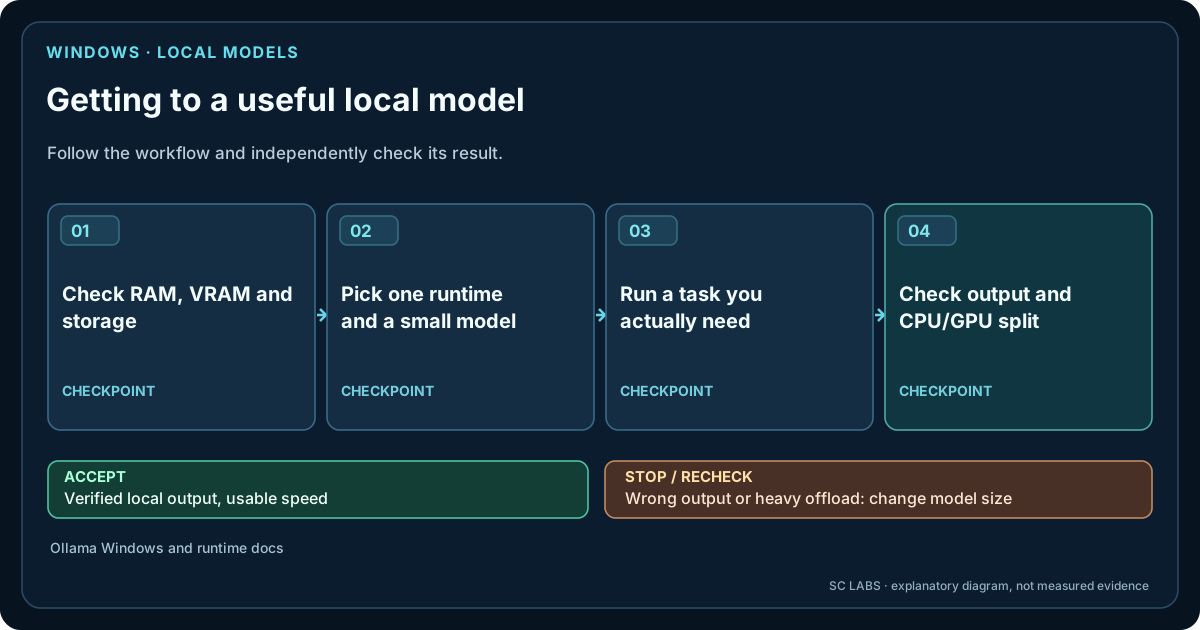
A local language model can run directly on a Windows PC without sending every prompt to a cloud model provider. In 2026 there are several mature ways to do that, including Ollama, LM Studio, llama.cpp and Microsoft Foundry Local. They solve slightly different problems, but the setup process should start in the same place: your hardware and your workload.
The most important lesson from our own testing: “the model starts” and “the model is useful on this PC” are not the same result.
The short version
- Check your system RAM, GPU and VRAM.
- Choose a runtime that matches how you want to use the model.
- Start with a model that fits comfortably, not the largest model you can force to load.
- Use a sensible quantisation such as Q4 or Q5 as a starting point.
- Run a real prompt and verify that the GPU is being used.
- Measure responsiveness, context headroom, structured output and task quality.
- Only move to a larger model when it improves the job enough to justify the cost.
Step 1: check the Windows PC first
Open Task Manager and record the CPU, total system RAM, GPU model, dedicated GPU memory and free storage. For local LLMs, both RAM and VRAM matter. VRAM determines how much model work can stay on the GPU; system RAM provides room for Windows, the runtime, CPU execution and partial offload.
Do not treat VRAM as the only number. Context length, KV cache, runtime overhead and other applications consume memory too. Our separate guides on VRAM, system RAM and context length explain those limits in more detail. The Local AI Readiness Estimate can also provide a quick browser-only first pass.
Step 2: choose the runtime before downloading ten models
Four useful Windows routes cover most local-LLM use cases.
Ollama: simple local service and CLI
Ollama is a practical starting point if you want a local API, command-line workflow or an easy backend for other applications. The official Windows build runs natively, supports NVIDIA and AMD GPU paths, and exposes its local API on localhost:11434. Current Windows requirements and installation details are in the official Ollama Windows documentation.
ollama run <model-name>
Use Ollama when you want a small amount of setup and a runtime that other local tools can call.
LM Studio: easiest visual route
LM Studio is useful when you prefer a graphical model browser, visible settings and a local chat interface. Its current Windows documentation recommends at least 16 GB of RAM and at least 4 GB of dedicated VRAM, while also making clear that model size still determines what is realistic. See the official LM Studio system requirements.
Use LM Studio when you want to explore GGUF models without building your own command-line workflow first.
llama.cpp: maximum control
llama.cpp is the lower-level route behind much of the local GGUF ecosystem. It can run on CPU and supports multiple acceleration backends. On NVIDIA hardware it can be built with CUDA, and its Windows build documentation describes CUDA, Vulkan, SYCL and other paths. See the official llama.cpp build guide.
Use llama.cpp when exact control over model files, GPU layers, context, server options or backends matters more than convenience.
Microsoft Foundry Local: Windows-native application path
Foundry Local is increasingly relevant when local inference is part of a Windows application rather than only a desktop chat. Microsoft documents a Windows path using local models and hardware acceleration, with current Windows guidance centred on Windows 11 24H2 and DirectX 12-capable GPU hardware for the WinML route. See Microsoft's Foundry Local guide.
Use it when you are building into the Windows AI stack or want the Windows ML application path rather than a standalone model playground.
Step 3: choose a model by job, not parameter count
A model with more parameters is not automatically better for your PC or your task. Coding, general chat, structured extraction, tool calling, long-document work and agent planning put different demands on a model. A smaller specialised model may outperform a larger general model on the job that matters to you.
Start with a realistic size band and test upward. On limited hardware, a 7B–12B-class quantised model is often a much better first experiment than immediately forcing a 20B–30B model through CPU offload. Systems with more VRAM have more options, but the same principle still applies: choose by measured usefulness.
For a hardware-first shortlist, see Which Local LLM Can My PC Run?.
Step 4: understand quantisation before assuming “Q2 fits, so Q2 wins”
Quantisation reduces the amount of memory needed to store and execute model weights. Labels such as Q4, Q5 and Q8 broadly indicate different compression levels, but the exact format also depends on the model and runtime. More aggressive compression can make a previously impossible model fit. That does not make the trade-off free.
Quality loss can appear in places that a casual chat test misses: exact JSON, function or tool calls, arithmetic, code correctness, instruction following and safety decisions. That is especially important for local agents, where a response needs to be machine-readable rather than merely plausible.
Step 5: verify that the GPU is doing useful work
After loading the model, open Windows Task Manager and watch GPU memory and GPU engine utilisation while generating a response. A model can run partly on CPU even when you have a GPU. That may be intentional, but it can change responsiveness dramatically.
Then test more than one short greeting. Measure:
- Time to first useful response: does the interaction feel immediate or stalled?
- Generation speed: sustained tokens per second after the prompt is processed.
- Context headroom: does performance or memory pressure change when the prompt becomes large?
- Structured output: can it reliably return the JSON or schema your application expects?
- Tool support: does the exact model/runtime combination actually support the tool-calling interface you intend to use?
- Task quality: does it solve your real coding, reasoning or document task correctly?
SC LABS Reality Check: 11 GB VRAM did not make every offered model useful
We tested a set of local models on an SC LABS Windows workstation with an NVIDIA GeForce RTX 2080 Ti, an 11 GB-class GPU. The test was not intended as a universal leaderboard. It was designed to expose a more useful distinction: quality, speed and agent capability can move in different directions.
The 30-task gate included Rust questions, reasoning, structured output, context recall, tool use and simple agent-policy decisions. These are results from this specific workstation and runtime setup on 24 August 2026.
| Model | Gate result | Observed generation | What it taught us |
|---|---|---|---|
| Gemma4 e4b | 29/30 · 96.7% | ~86.1 tok/s | High score and comfortable interactive speed in this test. |
| Qwen 3.5 9B | 28/30 · 93.3% | ~61.2 tok/s | Smaller model, still strong across most tested categories. |
| Ornith 1.0 9B Q4 | 28/30 · 93.3% | ~70.2 tok/s | Good general gate result at practical speed; specialist code tests are a separate question. |
| Qwen 2.5 Coder 14B | 24/30 · 80.0% | ~51.2 tok/s | Strong Rust and reasoning here, but 0/5 in this gate's tool section. |
| DeepSeek Coder V2 16B | 19/30 · 63.3% | ~105.5 tok/s | Very fast generation did not translate into the best overall result. |
| Qwen 3.8 27B Q4_K_M | 29.667/30 · 98.9% | ~3.79 tok/s | Excellent gate quality, but the larger model was far less pleasant interactively on this 11 GB-class GPU. |
| Qwen 3.8 27B IQ2_M | 18/30 · 60.0% | ~14.9 tok/s | Aggressive compression improved practical fit/speed, but structured output fell to 2/5 and tools to 0/5. |
The two 27B runs make the point particularly clearly. The Q4 build kept almost all of the gate quality but slowed to roughly 3.79 tokens per second. The much more aggressively compressed IQ2_M build increased observed generation to roughly 14.9 tokens per second, but the gate score dropped to 60%.
On this machine, “27B runs” was technically true. It still did not answer whether that 27B build was the best local model to use.
This is why we do not recommend models from VRAM alone. The useful unit is not “largest model that loads”. It is best model for the task at an acceptable latency, quality and memory margin.
Step 6: check whether “local” actually means local in your setup
A local model runtime can operate without sending prompts to a hosted model provider, but a complete application may still contain optional cloud services, update checks, remote connectors or web tools. Separate the model runtime from the rest of the application.
For a simple verification, disconnect optional cloud providers, run the model again and inspect Windows network activity. Our guide How to See Which Windows Apps Connect to the Internet explains what that evidence can and cannot prove.
A sensible first setup
If this is your first local LLM on Windows, keep the experiment intentionally small:
- Use Ollama or LM Studio.
- Pick one well-supported 7B–12B-class instruct model in a sensible Q4/Q5 quantisation.
- Run three real tasks you care about.
- Watch VRAM and system RAM while the model runs.
- Try a longer prompt to expose context overhead.
- Test exact JSON or tool calling if your intended application needs it.
- Only then compare a larger model.
This sequence usually teaches you more than downloading five large models at once. It also makes failures easier to explain: model quality, hardware pressure and runtime compatibility remain separate variables.
What to optimise for
After the first successful local run, move beyond chat speed: test the model with a real, verifiable computer task, and compare completion against a fixed brief. For tool use, the operating-profile results show why instruction format belongs in the test.
For interactive chat, prioritise responsiveness and enough quality. For coding, test compilable output rather than prose confidence. For document work, context and retrieval behaviour matter. For agents, tool support, structured output and reliable policy following may matter more than raw conversational quality.
That is also why our LLMRadar direction is hardware- and task-aware rather than a single global ranking.
Current official references
- Ollama — Windows documentation
- LM Studio — system requirements
- llama.cpp — build documentation
- Microsoft — Foundry Local on Windows
Runtime requirements and model support change quickly. Check the official documentation for the exact version you install, then use your own measurements as the final compatibility test.
Need local AI to complete a real task?
Share the available hardware and the work to be done. A pilot is evaluated against actual output. A pilot starts with a scoped conversation, not a promise of public product availability.
Discuss a scoped ARKTOR pilot